
 ES

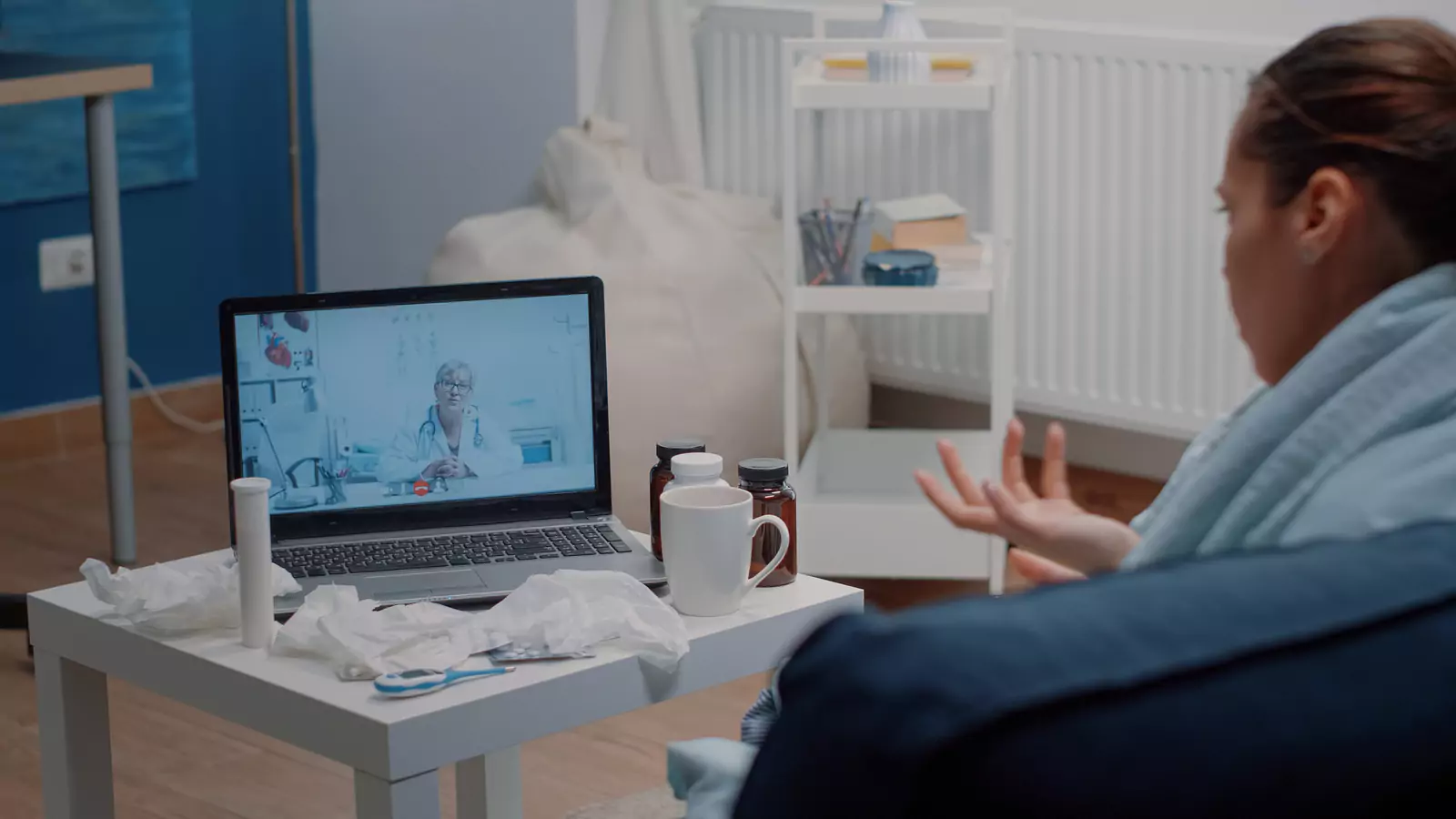







Prepare Shared Devices for Texas Medicaid Telehealth
Protect privacy and access before the virtual visit begins.
Can a shared device support a private virtual visit?
A borrowed phone, family tablet, workplace computer, or community device may support telehealth when the patient has permission to use it, can create a private setting, and knows how to remove personal information afterward.
The newest or fastest device is not always the best choice. A basic tablet in a private room may be more appropriate than a powerful computer in a public area.
VirtualCare2go provides a dedicated Texas Medicaid information page. Insurance acceptance does not guarantee that every member, appointment, service, or professional will be covered. Verify active eligibility, network status, telehealth benefits, and possible patient responsibility using the member’s current plan materials.
Get permission before changing anything
Ask the device owner before:
- Installing an application
- Changing security settings
- Allowing camera or microphone access
- Downloading a document
- Saving a photograph
- Creating a user profile
- Connecting headphones
- Using a workplace or community network
Some managed devices block cameras, downloads, pop-up windows, or audio permissions. A last-minute discovery can delay the appointment.
Reserve enough time to test the device, complete the visit, review instructions, and remove the patient’s information.
Choose privacy before convenience
Look for a room with:
- A solid door
- Limited foot traffic
- Adequate lighting
- A stable surface
- Reliable internet
- Working audio
- Enough space for the patient
- Permission to conduct a healthcare conversation
A parked vehicle may provide privacy but can create heat, safety, lighting, battery, and connection problems. Do not drive during a virtual appointment.
A shared computer in an open library or workplace area may expose private health information even when headphones are used. Other people may still see the screen, documents, or patient’s expressions.
Test the essential technology
Before the appointment, test:
- Internet connection
- Battery level
- Charging cable
- Camera
- Microphone
- Speakers or headphones
- Browser compatibility
- Application access
- Pop-up permissions
- Text or email verification
Position the camera at approximately eye level. Place the device on a stable stand rather than holding it for the entire visit.
Use front lighting when possible. A bright window behind the patient may make facial details difficult to see.
Protect the patient’s account
Whenever possible, use the patient’s own email address and telephone number for sign-in and verification.
Avoid:
- Saving the password in the browser
- Reusing a banking or primary-email password
- Sharing a verification code
- Leaving the account signed in
- Storing medical photographs in a shared gallery
- Saving documents to a public desktop
- Allowing the browser to remember payment information
Use a temporary browser session or guest profile when the device allows it. Sign out fully after the visit.
Verify Texas Medicaid details
Before the appointment, ask the member’s current Medicaid plan:
- Is eligibility active on the expected date?
- Is VirtualCare2go in network for this plan?
- Is the requested telehealth service covered?
- Does the plan require a referral or authorization?
- Is video required, or can audio-only care be used when appropriate?
- Could the member have a copay or other responsibility?
- Are prescriptions, tests, or follow-up services handled separately?
- What happens if the clinician redirects the patient to in-person care?
Record the representative’s name, date, reference number, and answers.
Coverage depends on the exact plan, eligibility, network, service, provider, date, and current rules.
Prepare the patient’s physical location
The clinician may need to know where the patient is physically located during the appointment.
Write down:
- Complete street address
- Apartment, suite, or room
- Patient’s callback number
- Emergency contact
- Nearest appropriate in-person care location
- Transportation plan if redirection becomes necessary
A virtual visit can begin in one city while the patient’s usual address is somewhere else. Give the location where the patient is actually sitting.
Build a concise health summary
Prepare:
- Main concern
- Symptom start time
- Whether symptoms are worsening
- Current medicines and doses
- Over-the-counter products
- Vitamins and supplements
- Allergies and reactions
- Major medical conditions
- Pregnancy information when relevant
- Recent test results
- Preferred pharmacy
- Primary-care contact
Keep the summary on paper when using a shared device. Avoid storing private medical details in a public application.
Plan what the camera may need to show
The clinician may ask the patient to show:
- A visible rash
- Swelling
- Eye redness
- Throat appearance
- Movement
- Breathing pattern
- A medicine label
- A home measurement
Do not perform painful movements or remove clothing unless the clinician requests it and the patient has appropriate privacy.
Some concerns cannot be evaluated adequately through video. The clinician may recommend hands-on examination, testing, imaging, urgent care, or emergency care.
Involve caregivers carefully
A caregiver may help with:
- Technology
- Communication
- Medication history
- Mobility
- Memory
- Child supervision
- Accessibility needs
The patient should know who is present. When the patient can decide, ask permission before another person listens.
For a minor, the appropriate parent or guardian should participate according to current requirements.
Do not use a child as the default interpreter for complex medical communication.
Create a connection-failure plan
Before joining, write down:
- The appointment support number
- The patient’s callback number
- The clinic’s instructions for reconnection
- The physical address
- The nearest appropriate in-person setting
- The name of the person who can provide transportation
If the connection drops, do not repeatedly create new accounts or appointment requests unless instructed. Follow the platform’s current reconnection process.
A failed video connection does not mean audio-only care is always appropriate. The clinician must decide whether the available technology supports safe evaluation.
Know when virtual care is not enough
Virtual urgent care may fit certain non-life-threatening concerns. It does not replace emergency evaluation.
Call 911 or go to the nearest emergency department for:
- Severe breathing difficulty
- Persistent chest pain or pressure
- Signs of stroke
- Loss of consciousness
- Uncontrolled bleeding
- Severe allergic reaction
- Major trauma
- Seizure
- Another life-threatening condition
Do not spend time troubleshooting a shared device during an emergency.
Clean up the device afterward
When the visit ends:
- Save necessary instructions through an approved method.
- Sign out of the healthcare account.
- Sign out of email.
- Close all browser tabs.
- Delete downloaded files.
- Remove medical photographs.
- Clear temporary browser data when appropriate.
- Disconnect the patient’s headphones.
- Remove saved payment information.
- Return settings to the device owner’s preference.
Do not delete the owner’s files or change managed security settings without permission.
Close the medical follow-up loop
Before signing out, confirm:
- The working assessment
- Medicine directions
- Pending test orders
- Referral instructions
- Warning signs
- Follow-up timing
- Who will communicate results
- What to do if symptoms worsen
- Whether another appointment is needed
Write the instructions on the patient’s own paper or save them to a secure personal account.
Review VirtualCare2go’s virtual urgent care information and current Texas Medicaid page before booking. Confirm the exact plan and current appointment requirements.
Medical disclaimer: This article is educational and is not a diagnosis, individualized medical advice, an insurance determination, or a substitute for professional care. Telehealth suitability, coverage, and availability depend on the patient’s symptoms, location, technology, plan eligibility, scheduling, and provider assessment. Call 911 or go to the nearest emergency department for an emergency.